IA & Agentes
Copilot Studio - Agent ou Workflow - o que é cada um e como usar os dois juntos
Copilot Studio - Agent or Workflow - what each one is and how to use them together
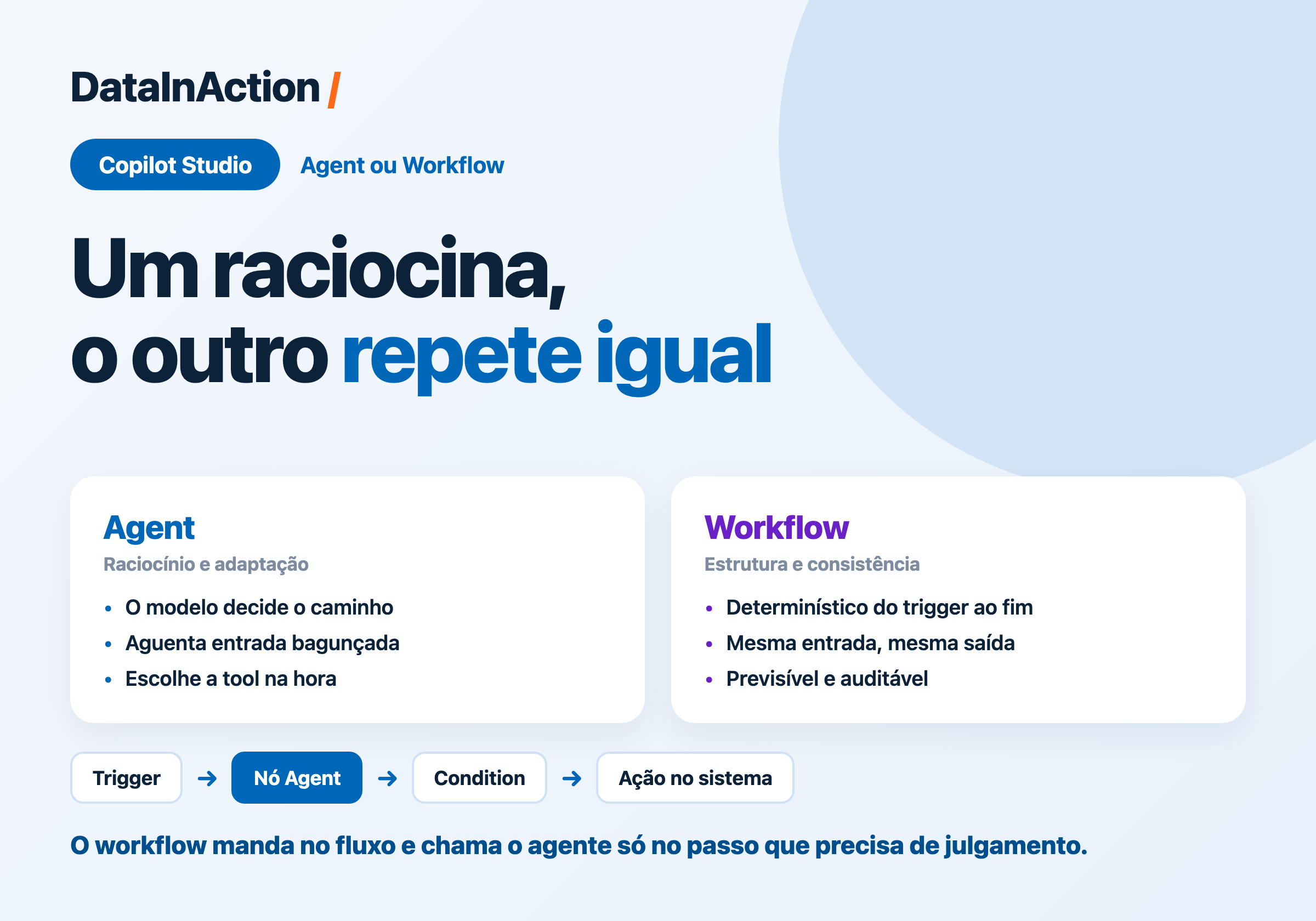
A Microsoft publicou um post explicando como agents e workflows se combinam no Copilot Studio, e essa é justamente a primeira escolha que aparece na tela quando você vai criar algo novo: um toggle com Agent de um lado e Workflow do outro. Nesse post eu explico o que é cada um dos dois e como colocar um agente para trabalhar dentro de um workflow.
O que é um Agent
O agente é a peça que raciocina. A Microsoft define como uma solução flexível que age, compartilha conhecimento e resolve tarefas, e quem sustenta essa flexibilidade é o modelo de linguagem por trás. Você escreve as instructions em linguagem natural, pluga as tools e o knowledge, e na hora da execução o agente lê o que chegou, interpreta e decide sozinho qual tool chamar e em que ordem. Não existe caminho desenhado, quem monta o caminho é o raciocínio do modelo em cima da instrução que você deu.
Isso tem duas consequências bem práticas. A primeira é que o agente aguenta entrada bagunçada, tipo um e-mail escrito de qualquer jeito, um PDF fora de padrão ou um pedido meio vago, e ainda consegue extrair o que importa. A segunda é que a mesma entrada pode gerar caminhos diferentes em duas execuções, porque a decisão é do modelo. Então o agente é a escolha quando existe ambiguidade e alguém precisa interpretar antes de agir.
O que é um Workflow
O workflow é automação determinística. Ele é formado por um trigger e pelo menos uma action, e roda do início ao fim sempre pelo mesmo caminho, então a mesma entrada devolve sempre a mesma saída. É aí que está o valor dele: previsibilidade, repetição e rastro pra auditar depois.
O trigger pode ser instantâneo (você roda na mão), agendado ou disparado por um evento, tipo chegou e-mail novo ou foi criado um registro. E as ações são de quatro tipos:
AI capabilities: gerar texto, processar documento, rodar um prompt num modelo e chamar um agente.
Human in the loop: pedir informação ou aprovação pra uma pessoa e esperar a resposta.
Built-in tools: loop, branching, operações com dados, data e hora e workflow filho.
Connectors: Microsoft 365, serviços de terceiros e conectores customizados.
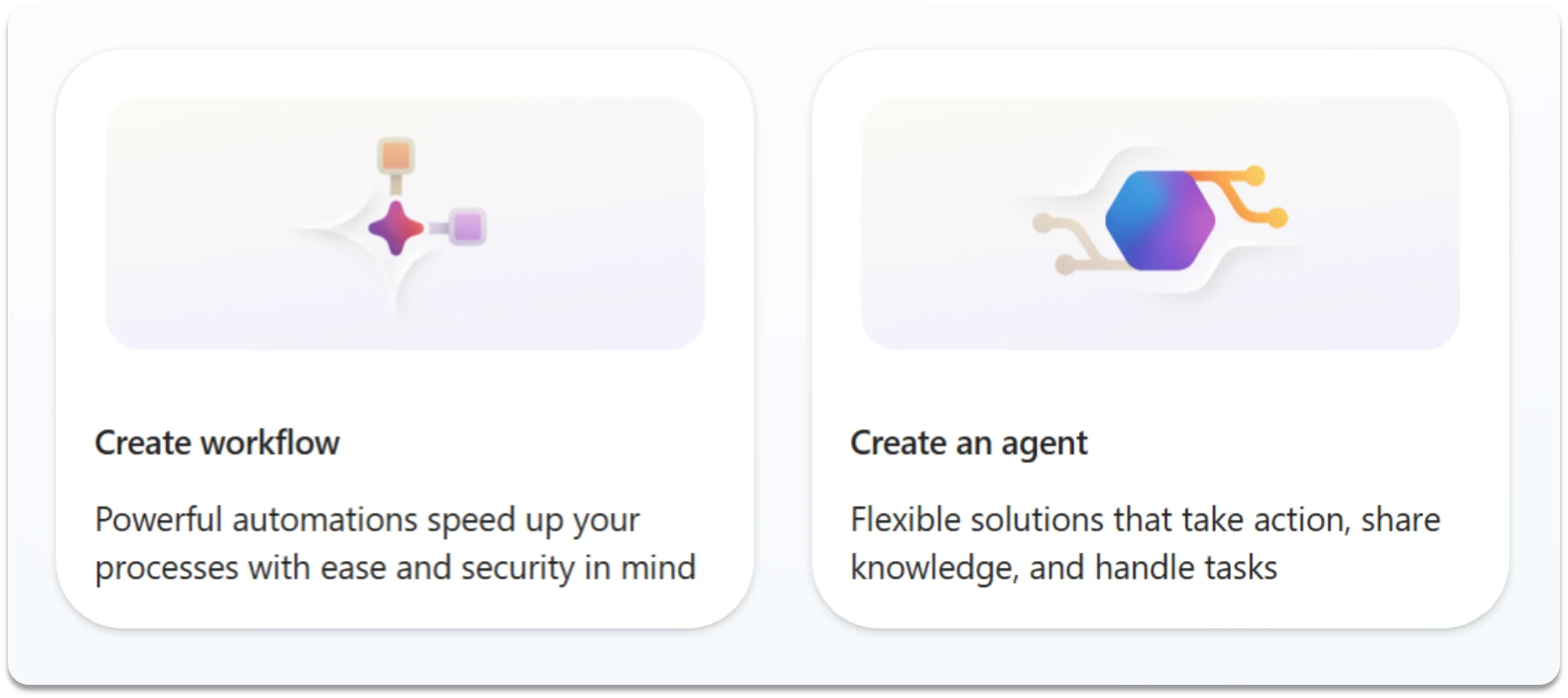
Repara na descrição que a própria Microsoft usa nos dois cards: o workflow é "powerful automations", automação com velocidade e segurança, e o agente é "flexible solutions", solução flexível que age e resolve tarefa. Na prática o workflow te dá repetição e o agente te dá julgamento.
Usando Agents dentro de Workflows
Essa é a parte que mudou o jogo. Dentro do designer de workflow existe o nó Agent, que fica no painel de ações em AI capabilities e aparece no canvas como Run an agent. Ele entrega um passo do fluxo pro agente, que raciocina, chama tools, consulta knowledge e devolve o resultado pro workflow continuar.
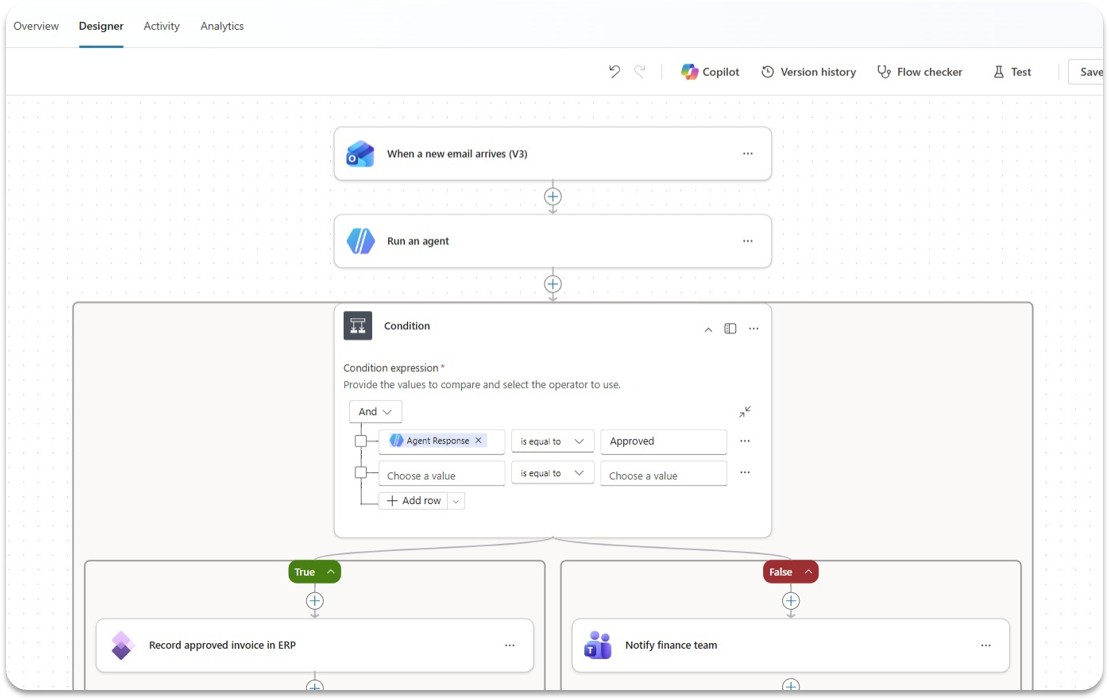
O print acima é o exemplo oficial e explica sozinho: o trigger é When a new email arrives, o segundo nó é o Run an agent que lê a fatura que chegou, e o terceiro é um Condition comparando o Agent Response com "Approved". Se aprovou, grava a fatura no ERP. Se não aprovou, avisa o time financeiro no Teams. O workflow continua no comando do processo inteiro e o agente resolve só o pedaço que precisa de interpretação.
Na configuração do nó você escolhe entre duas opções:
An existing agent: você aponta pra um agente já publicado, que roda com as instructions, tools e knowledge que ele já tem. Serve quando o mesmo agente é usado em vários workflows ou é de outro time.
New agent for this workflow: você cria um agente inline, ali dentro do nó, com instructions, model, tools (conectores e servidores MCP), knowledge (SharePoint e sites públicos) e formato de saída. É o caminho mais rápido, e a configuração viaja junto com o workflow.
DETALHE IMPORTANTE: o agente inline fica preso naquele workflow, não dá pra reusar fora dele. Se você se pegar recriando o mesmo agente inline em três workflows, promove ele pra agente publicado e chama esse agente nos três.
Outra coisa que vale configurar é o Output, porque é ele que define como o resto do fluxo consome a resposta. Tem três formatos: Text response, que devolve uma string só, Structured output, que devolve um objeto com campos nomeados, e Custom structured output, onde você define o JSON schema na mão. Quando você usa saída estruturada cada campo vira um token de dynamic content, então dá pra ramificar o fluxo em cima de priority = high, gravar campo por campo no Dataverse ou mandar tudo pra uma API sem ficar tratando texto solto.
E tem o Request human assistance when unsure, que é o freio de mão: quando o agente não tem confiança pra decidir sozinho, ele manda e-mail pro dono da conexão e o fluxo fica esperando a resposta. Vale ligar em decisão caríssima de errar, tipo exceção de transação financeira e aprovação fora do padrão.
O caminho inverso, workflow como tool do agente
Dá pra inverter a ordem também. Nesse caso o agente é quem está no comando e chama o workflow como uma tool, pra executar um subprocesso que precisa acontecer sempre igual.
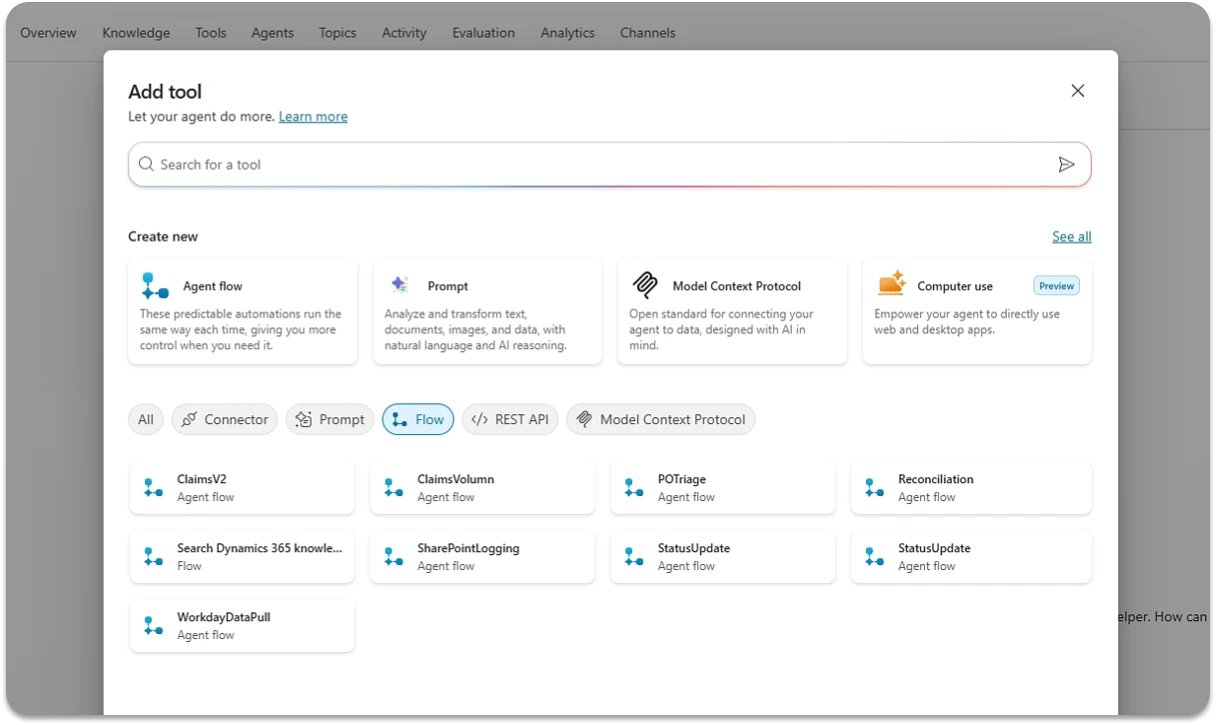
Só que aqui tem regra, e é onde a maioria trava. Pro workflow aparecer na lista de tools do agente ele precisa:
Ter o trigger When an agent calls the flow e a ação Respond to the agent.
Estar configurado pra responder em tempo real, com o toggle Asynchronous response desligado.
Estar publicado.
Responder dentro do limite de 100 segundos, ou seja, otimize as queries e o volume de dado que você devolve.
Quando usar qual
A regra que eu uso é simples: se você consegue desenhar o processo num fluxograma sem escrever "depende" em nenhuma caixinha, é workflow. Se em algum ponto alguém precisa ler, interpretar e escolher o que fazer, é agente naquele ponto. E na maioria dos casos reais o desenho bom é misturado, com o workflow segurando a estrutura e o agente entrando nos passos de julgamento.
Dois detalhes que aparecem na documentação e é bom saber antes de colocar em produção. O primeiro é custo: cada ação que o workflow executa consome capacidade do Copilot Studio, e quando a capacidade pré-paga do ambiente termina as novas execuções são bloqueadas, embora as que já estavam rodando terminem normal. Teste feito no designer ou no chat de teste do agente não consome capacidade.
O segundo é maturidade: a nova experiência de agente está como production-ready preview e a nova experiência de workflows está em public preview, e o que você cria na nova não converte pra clássica. Então vale testar antes de mover processo crítico pra lá.
RESUMO
Agent - raciocina em cima da instrução, aguenta entrada bagunçada, decide as tools na hora, caminho não determinístico.
Workflow - trigger mais ações, caminho fixo, mesma entrada devolve mesma saída, previsível e auditável.
Agente dentro do workflow - nó Run an agent, com agente publicado ou inline, e saída estruturada pra ramificar o fluxo depois.
Workflow dentro do agente - vira tool, mas exige trigger de agente, resposta síncrona, publicação e resposta em até 100 segundos.
Cada ação de workflow consome capacidade, e as duas experiências novas ainda estão em preview.
Referências:
Automate business processes with agents plus workflows in Microsoft Copilot Studio
Add an agent node to a workflow
Add a workflow as a tool to an agent
Prints desse post: documentação e blog oficiais da Microsoft.
#copilotstudio #microsoft #ia #agentes #workflow #datainaction
Microsoft published a post explaining how agents and workflows come together in Copilot Studio, and that happens to be the very first choice on your screen when you go create something new: a toggle with Agent on one side and Workflow on the other. In this post I explain what each one is and how to put an agent to work inside a workflow.
What an Agent is
The agent is the piece that reasons. Microsoft describes it as a flexible solution that takes action, shares knowledge and handles tasks, and what makes that flexibility possible is the language model behind it. You write the instructions in natural language, plug in the tools and the knowledge, and at run time the agent reads whatever came in, interprets it and decides on its own which tool to call and in what order. There is no path drawn upfront, the path comes from the model reasoning over the instruction you wrote.
That has two very practical consequences. The first one is that the agent handles messy input, like an email written any old way, a PDF that doesn't follow a template or a request that is a bit vague, and it still pulls out what matters. The second one is that the same input can lead to different paths across two runs, because the decision belongs to the model. So the agent is the right call when there is ambiguity and someone needs to interpret before acting.
What a Workflow is
The workflow is deterministic automation. It is made of a trigger and at least one action, and it runs from start to finish always down the same path, so the same input always returns the same output. That is exactly where its value is: predictability, repetition and a trail you can audit later.
The trigger can be instant (you run it by hand), scheduled or fired by an event, like a new email arriving or a record being created. And the actions come in four flavors:
AI capabilities: generate text, process a document, run a prompt against a model and call an agent.
Human in the loop: ask a person for information or approval and wait for the answer.
Built-in tools: loops, branching, data operations, date and time functions and child workflows.
Connectors: Microsoft 365, third party services and custom connectors.
Look at the wording Microsoft itself uses on the two cards: the workflow is "powerful automations", automation with speed and security in mind, and the agent is "flexible solutions", a flexible solution that takes action and handles tasks. In practice the workflow gives you repetition and the agent gives you judgment.
Using Agents inside Workflows
This is the part that changed the game. Inside the workflow designer there is the agent node, which lives in the action panel under AI capabilities and shows up on the canvas as Run an agent. It hands one step of the flow over to the agent, which reasons, calls tools, looks things up in knowledge and returns the result so the workflow can carry on.
The screenshot above is the official example and it explains itself: the trigger is When a new email arrives, the second node is the Run an agent that reads the invoice that came in, and the third one is a Condition comparing the Agent Response against "Approved". If it was approved, the invoice goes into the ERP. If it wasn't, the finance team gets a heads up on Teams. The workflow stays in charge of the whole process and the agent only solves the piece that needs interpretation.
In the node configuration you pick one of two options:
An existing agent: you point to an already published agent, which runs with the instructions, tools and knowledge it already has. Good when the same agent is used across several workflows or belongs to another team.
New agent for this workflow: you build an inline agent right there in the node, with instructions, model, tools (connectors and MCP servers), knowledge (SharePoint and public websites) and output shape. It is the fastest route, and the configuration travels along with the workflow.
IMPORTANT: the inline agent is scoped to that workflow, you can't reuse it anywhere else. If you catch yourself rebuilding the same inline agent in three workflows, promote it to a published agent and call that agent from all three.
Another thing worth configuring is the Output, because it defines how the rest of the flow consumes the answer. There are three shapes: Text response, which returns a single string, Structured output, which returns an object with named fields, and Custom structured output, where you define the JSON schema yourself. When you use a structured output each field becomes a dynamic content token, so you can branch the flow on priority = high, write field by field into Dataverse or ship everything to an API without parsing loose text.
And there is Request human assistance when unsure, which is the handbrake: when the agent isn't confident enough to decide on its own, it emails the connection owner and the flow waits for the reply. Worth turning on for decisions that are expensive to get wrong, like exceptions on financial transactions and approvals outside the standard.
The other way around, workflow as a tool for the agent
You can flip the order too. In this case the agent is the one in charge and it calls the workflow as a tool, to run a subprocess that has to happen the same way every time.
There are rules here though, and this is where most people get stuck. For the workflow to show up in the agent's tool list it has to:
Have the When an agent calls the flow trigger and the Respond to the agent action.
Be configured to answer in real time, with the Asynchronous response toggle turned off.
Be published.
Answer within the 100 second limit, meaning you optimize the queries and the amount of data you send back.
When to use which
The rule I use is simple: if you can draw the process as a flowchart without writing "it depends" in any of the boxes, it's a workflow. If at some point someone has to read, interpret and choose what to do, it's an agent at that point. And in most real cases the good design is mixed, with the workflow holding the structure and the agent stepping into the judgment calls.
Two details that show up in the documentation and are good to know before going to production. The first one is cost: every action your workflow executes consumes Copilot Studio capacity, and once the environment's prepaid capacity runs out new runs are blocked, though the ones already running finish normally. Tests from the designer or from the agent's test chat don't consume capacity.
The second one is maturity: the new agent experience sits at production-ready preview and the new workflows experience is in public preview, and what you build in the new experience doesn't convert back to classic. So test it properly before moving a critical process over there.
RECAP
Agent - reasons over the instruction, handles messy input, picks tools at run time, non deterministic path.
Workflow - trigger plus actions, fixed path, same input returns the same output, predictable and auditable.
Agent inside the workflow - the Run an agent node, with a published or inline agent, and structured output so you can branch the flow afterwards.
Workflow inside the agent - it becomes a tool, but it requires the agent trigger, a synchronous response, publishing and an answer within 100 seconds.
Every workflow action consumes capacity, and both new experiences are still in preview.
References:
Automate business processes with agents plus workflows in Microsoft Copilot Studio
Add an agent node to a workflow
Add a workflow as a tool to an agent
Screenshots in this post: official Microsoft documentation and blog.
#copilotstudio #microsoft #ai #agents #workflow #datainaction
Gostou? Tem mais no YouTube e no LinkedIn.
Enjoyed it? There's more on YouTube and LinkedIn.
Continue lendo Keep reading
![GitHub Copilot a fundo [5] - AI Credits: o Copilot virou usage-based](/images/ghcopilot-aicredits-capa.png)
GitHub Copilot a fundo [5] - AI Credits: o Copilot virou usage-based
Ler → Read →![GitHub Copilot a fundo [4] - Copilot CLI: o agente que mora no seu terminal](/images/ghcopilot-cli-capa.png)
GitHub Copilot a fundo [4] - Copilot CLI: o agente que mora no seu terminal
Ler → Read →![GitHub Copilot a fundo [3] - MCP: ferramentas para o agente sem perder a governança](/images/ghcopilot-mcp-capa.png)