IA & Agentes
Copilot Studio - Base de Conhecimento [5] - Conectando Foundry IQ + Azure Databricks como fonte
Copilot Studio - Knowledge base [5] - Connecting Foundry IQ + Azure Databricks as a source
![Copilot Studio - Base de Conhecimento [5] - Conectando Foundry IQ + Azure Databricks como fonte](/images/copilot-knowledge-5-capa.png)
Fala dataholics! Chegamos no quinto e último post da série de Base de Conhecimento, e eu guardei pro final as fontes principais Azure Databricks e Foundry IQ. No post 4 eu prometi plugar o Databricks direto como fonte do agente, e é isso que a gente faz hoje, junto dele eu conectei um índice do Azure AI Search (Foundry IQ) que montei com o meu próprio padrão de chunking (o Foundry IQ que abrimos no post 3), fechando o agente com 4 bases mais a web search. E aproveito o post pra explicar um detalhe quando você junta várias fontes num agente só: a descrição de cada base é o que ensina o agente a escolher a fonte certa na hora certa.
O que veremos nesse post:
O agente final: 4 bases de conhecimento mais a web
Databricks como fonte
Azure AI Search: plugando o meu índice do Foundry IQ
Na prática: Databricks respondendo, só que consultando tudo
Na prática: o AI Search nas buscas de documento
A descrição é o roteamento (a parte mais delicada)
Resumo
O agente final: 4 bases mais a web
A aba Knowledge do meu agente ficou com quatro fontes diferentes:
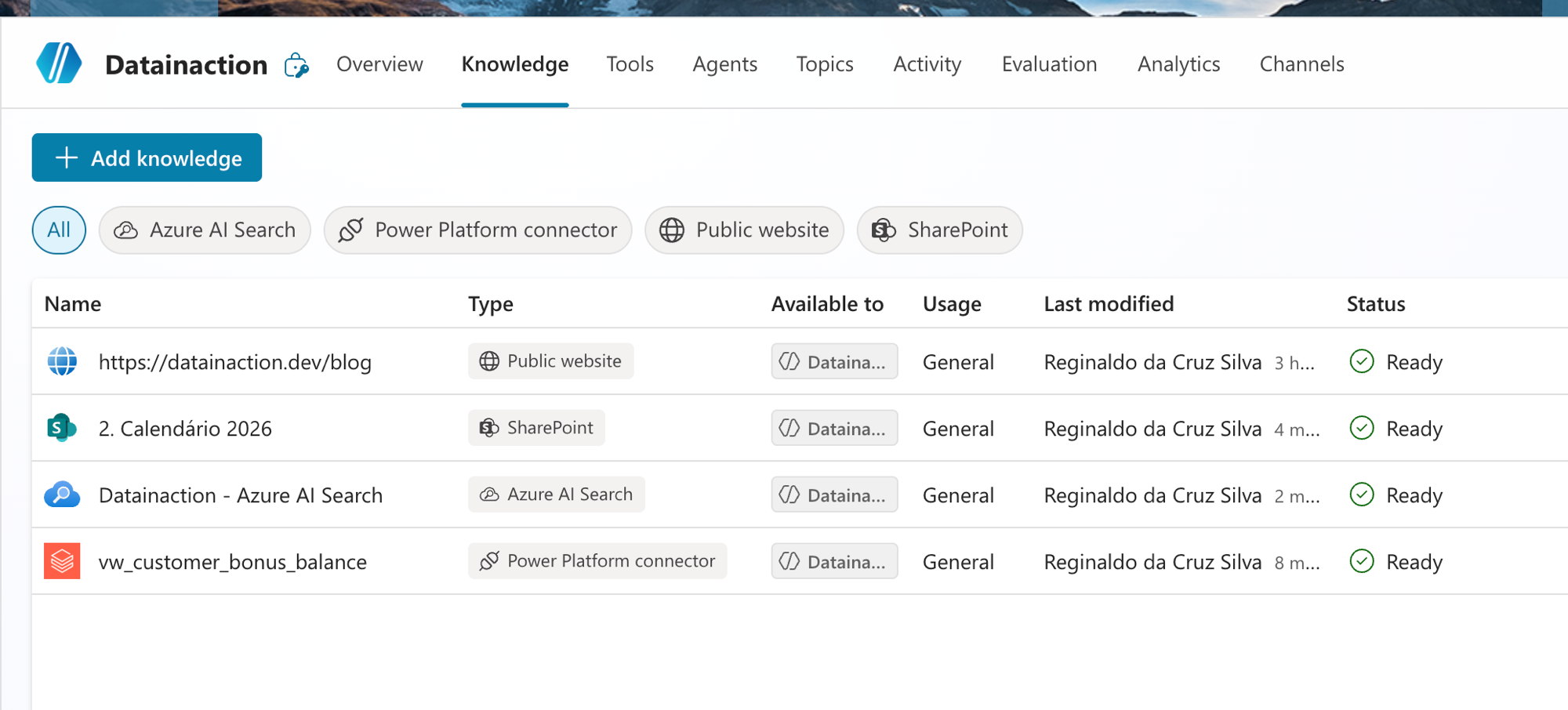
Repara na coluna Type, porque cada linha é um mundo que a gente viu na série: o Public website (datainaction.dev/blog) do post 4, o SharePoint (2. Calendário 2026) dos posts 1 e 2, o Azure AI Search (o índice do Foundry IQ do post 3) e um Databricks. Tudo com status Ready.
E ainda tem a web ligada por cima disso. Na tela de Overview dá pra ver as bases e logo abaixo o Web Search habilitado.
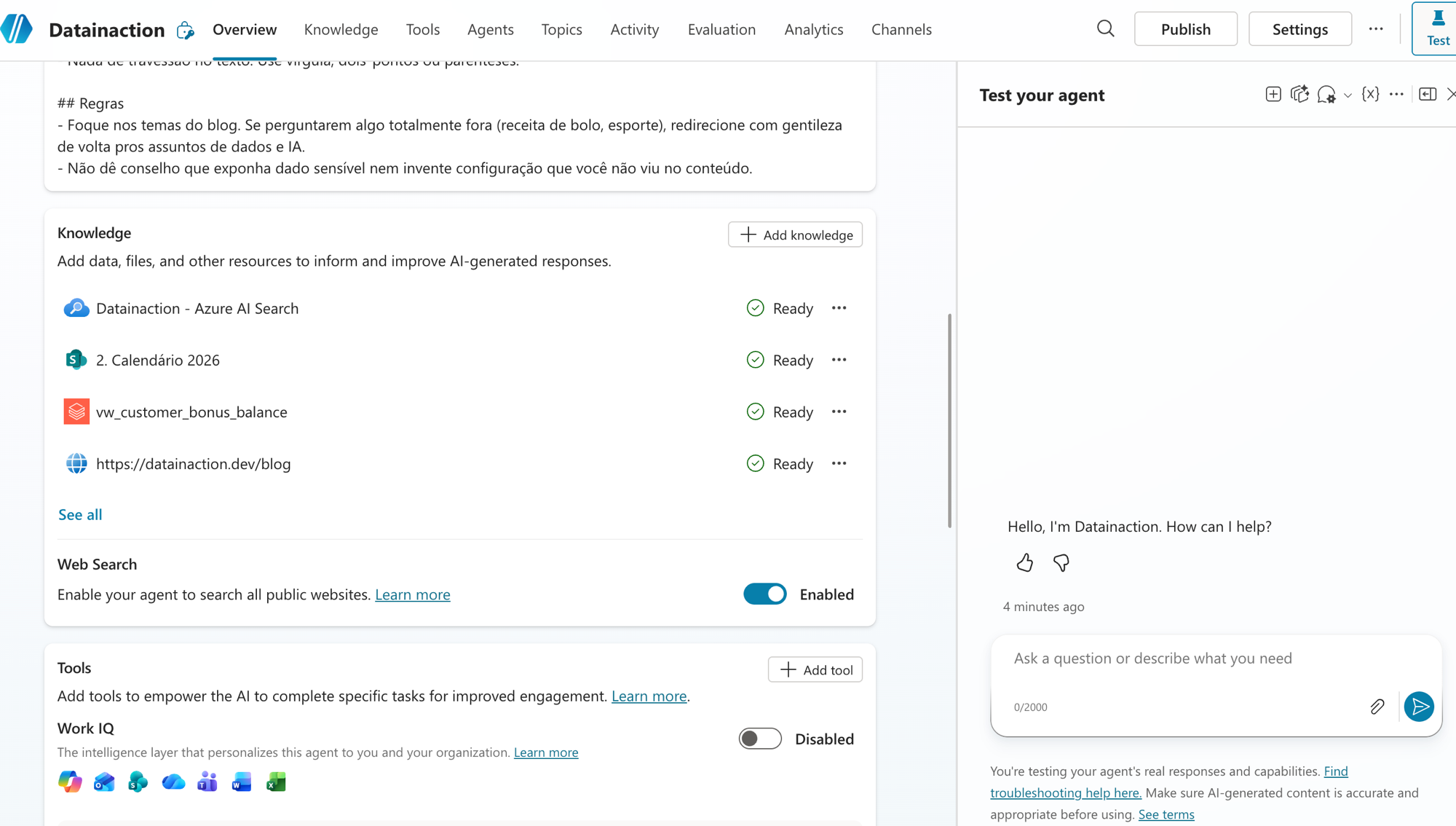
Então o status agente é esse: 4 bases de conhecimento mais 1 Web Search. Semana que vem eu começo a falar de Tools, que é o próximo tópico, mas por hoje o foco é conhecimento.
Databricks como fonte de conhecimento
Essa é a parte que eu mais queria mostrar. Você vai em Add knowledge e escolhe o Azure Databricks. A primeira coisa que ele pede é o Dataset, que aqui é o seu catálogo no Unity Catalog:
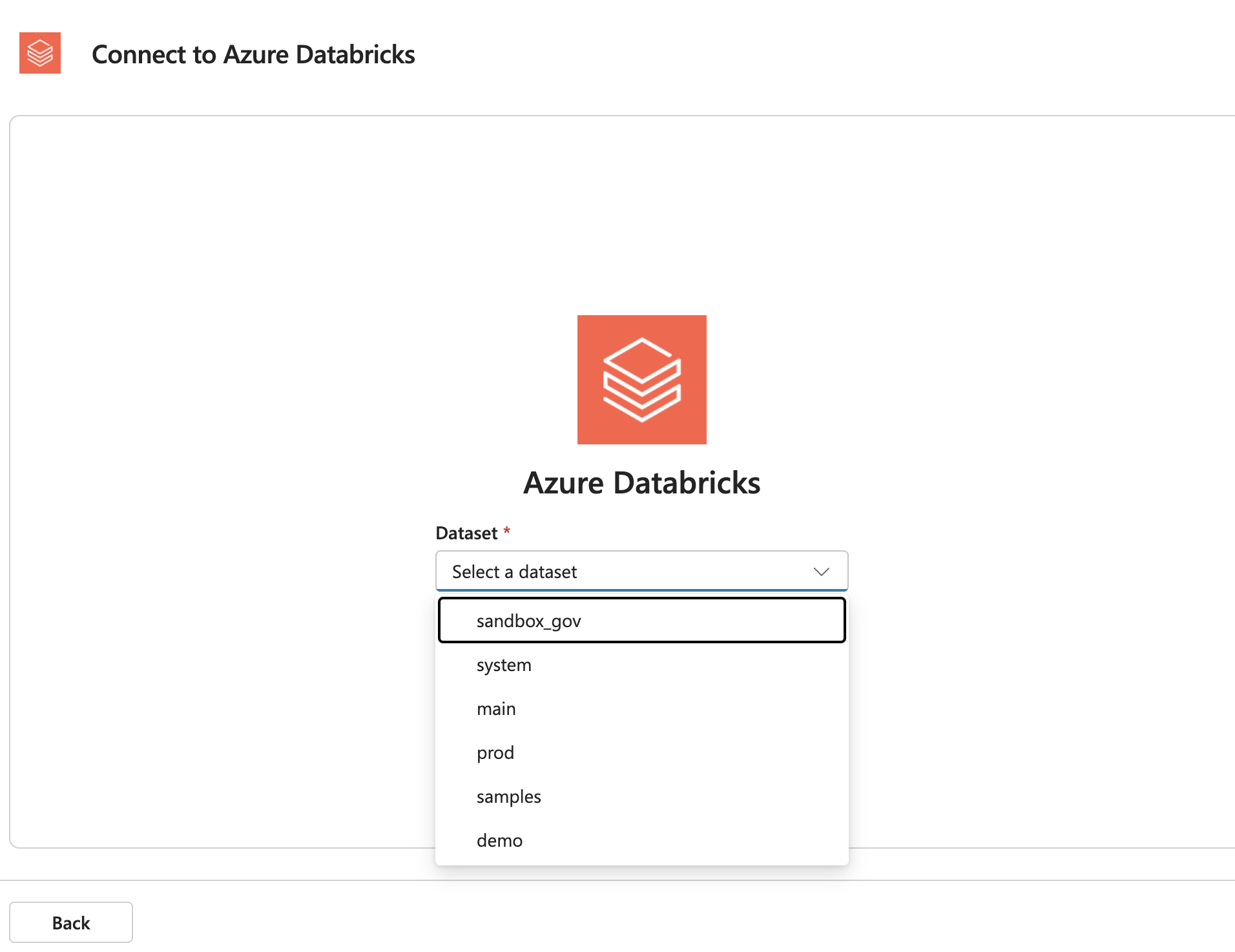
Ele já lista os catálogos que existem no meu workspace (sandbox_gov, system, main, prod, samples, demo). Escolhi o prod e ele foi buscar as tabelas lá dentro. Na tela seguinte você seleciona o que vai virar fonte, e dá pra pegar até 15 itens:
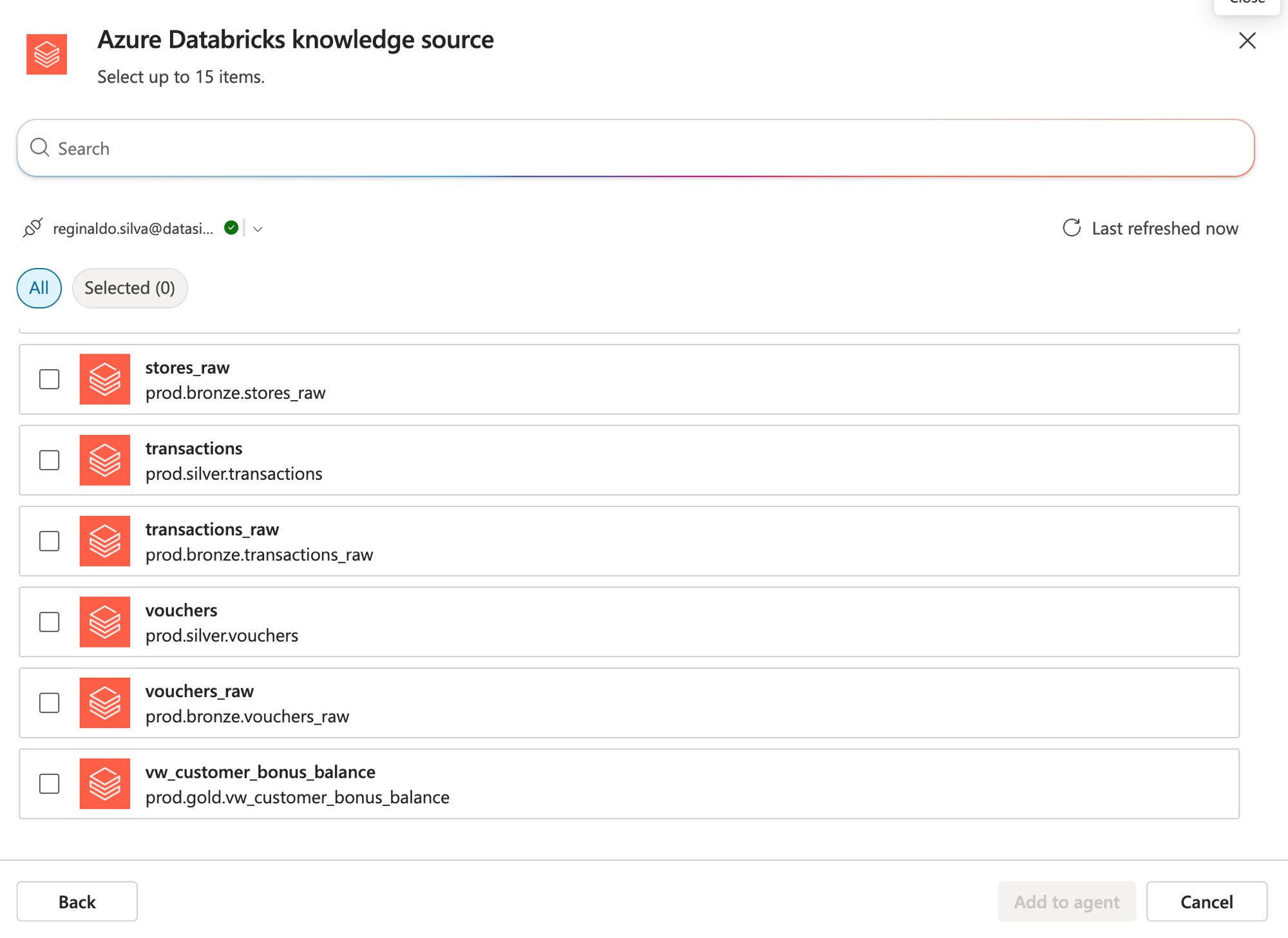
Aqui aparece a minha modelagem em camadas bem na cara: prod.bronze.stores_raw, prod.silver.transactions, prod.gold.vw_customer_bonus_balance e por aí vai. Eu escolhi a view de gold vw_customer_bonus_balance, que é o dado já tratado e pronto pra pergunta de negócio. Uma dica: aponte pra gold, pra views e tabelas curadas, e não pro bronze cru. O agente vai consultar isso em linguagem natural e você quer que ele use um dado limpo, com nome de coluna que faz sentido.
Tem um passo que nao fica visivel aqui, depois de adicionar o Databricks você precisa autorizar a conexão pra ela funcionar de dentro do agente. Vai em Manage your connections e confere o status:
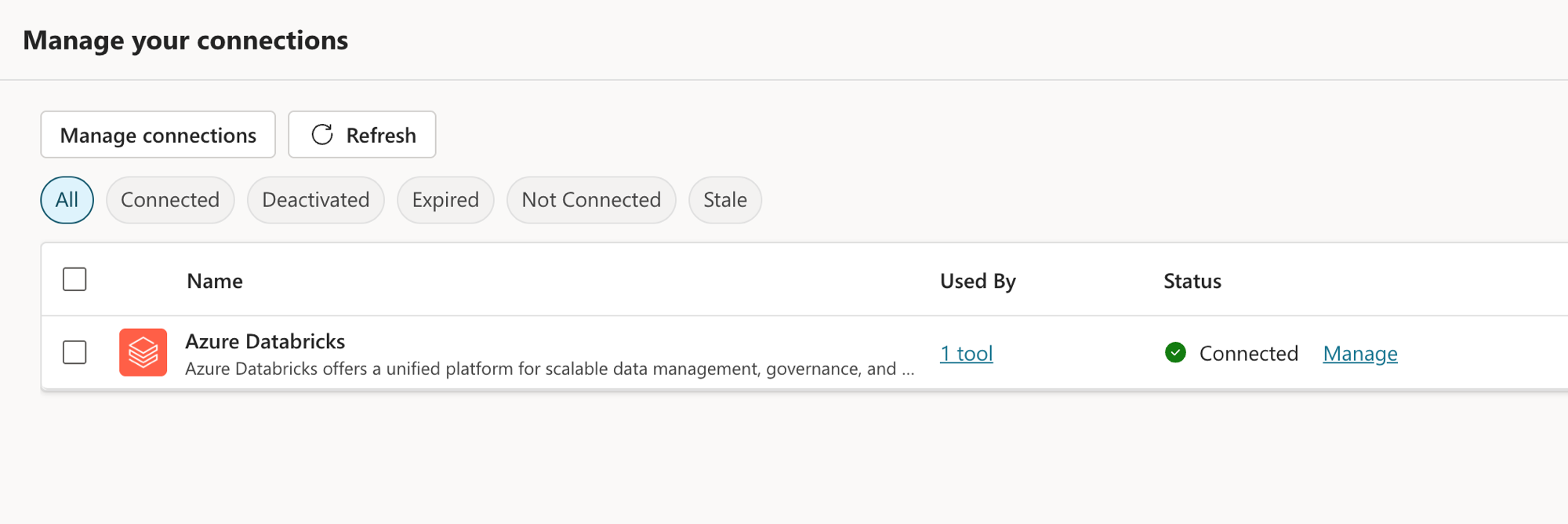
Enquanto essa conexão do Azure Databricks não estiver Connected, a fonte fica lá bonita mas não responde nada. Repara também no "Used By 1 tool": por baixo dos panos o Copilot trata esse acesso ao Databricks como um connector do Power Platform, e é por isso que lá na lista de Knowledge ele apareceu com o Type Power Platform connector em vez de um tipo "Databricks" próprio. É o mesmo bicho, só com nome de crachá diferente.
Azure AI Search: o meu índice do Foundry IQ
A segunda fonte nova é o Azure AI Search. Lembra que no post 3 eu montei um índice no Foundry IQ com o chunking do meu jeito? É esse que eu vou plugar agora. Em Add knowledge, aba Advanced, escolhi o Azure AI Search e ele listou os índices que existem no meu serviço:
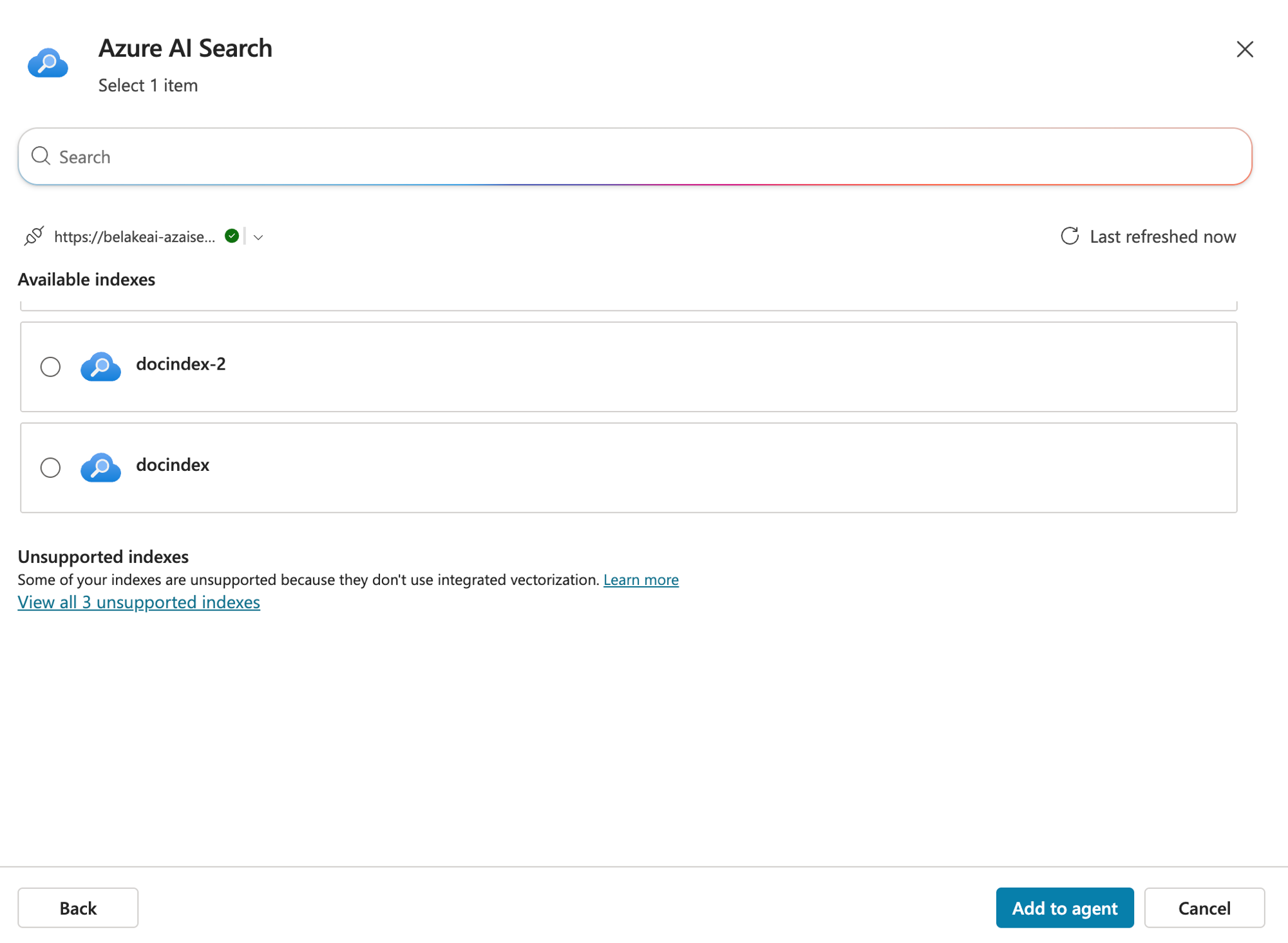
Selecionei o docindex, que é o meu índice de documentos. Mas presta atenção nesse aviso no rodapé, porque ele pega muita gente de surpresa: aparece um bloco de Unsupported indexes dizendo que alguns dos meus índices não são suportados porque não usam integrated vectorization. Ou seja, não é qualquer índice do Azure AI Search que entra aqui, ele precisa ter a vetorização integrada configurada. Índice antigo, só com busca de palavra-chave, o Copilot Studio nem deixa selecionar. Se o seu não aparecer na lista, é quase sempre isso.
Na prática: Databricks respondendo
Agente montado, hora de testar. Fui no painel de teste e perguntei uma coisa que só o Databricks sabe responder: "Qual total de bônus gerados?". A resposta veio certinha, direto da view de gold:
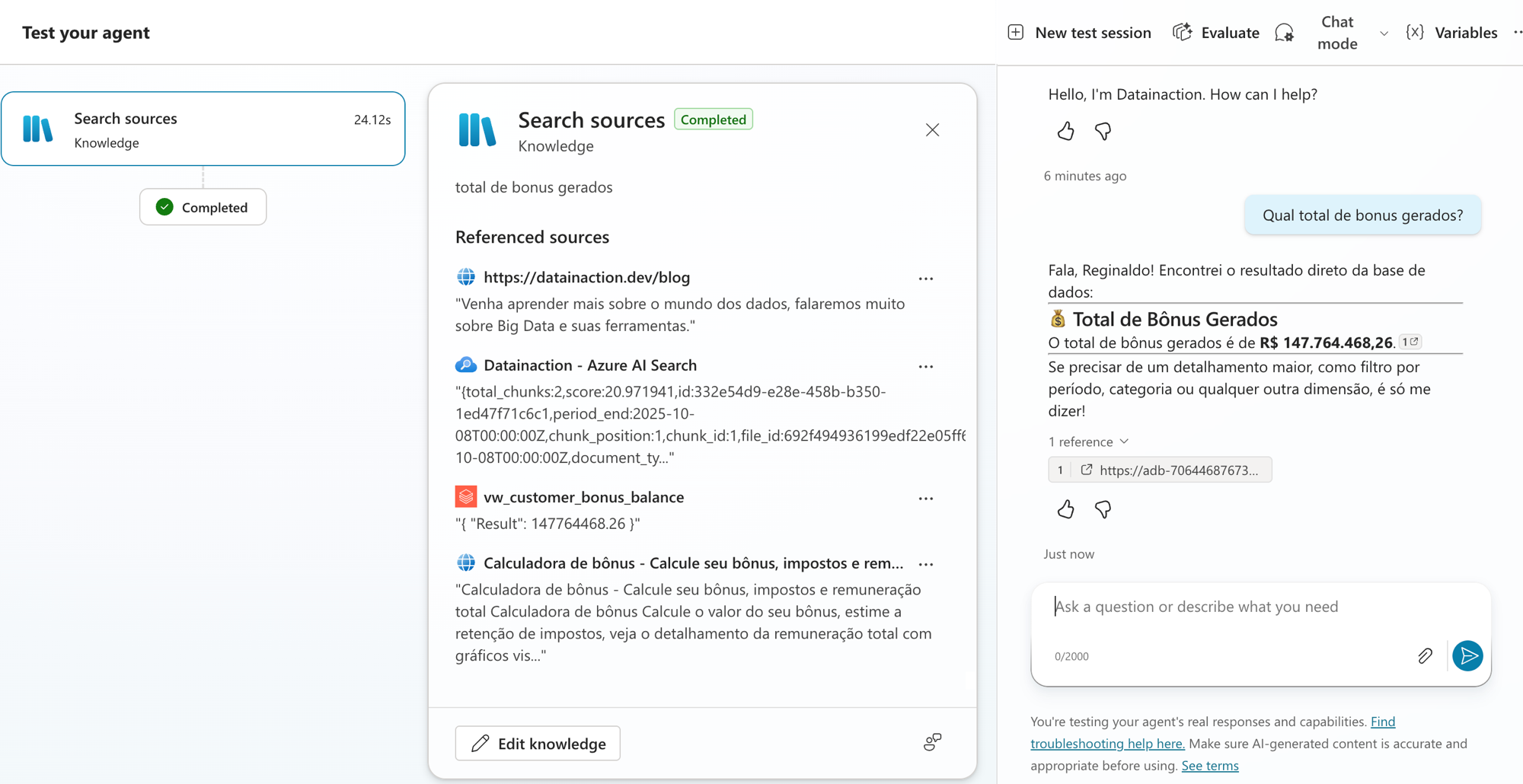
Olha que legal, ele foi na vw_customer_bonus_balance, trouxe o { "Result": 147764468.26 } e formatou pra mim como R$ 147.764.468,26, ainda ofereceu detalhar por período ou categoria. Do ponto de vista da resposta, perfeito.
Agora abre o painel de Search sources do lado esquerdo e repara no que ele consultou pra chegar nesse número: o meu blog, o Azure AI Search, o Databricks e até uma "Calculadora de bônus" que ele achou na internet. Pra uma pergunta que só o Databricks tinha como responder, ele bateu em todas as fontes. Esse é o comportamento padrão quando as descrições não guiam a escolha: na dúvida, o agente pergunta pra todo mundo. Funciona, mas gasta tempo e tokens com fonte que não tinha a resposta, e num cenário real acaba trazendo contexto que não devia. Guarda essa imagem, porque é justamente ela que eu quero usar pra explicar o próximo bloco.
Na prática: o AI Search nas buscas
Pra ver o índice do AI Search trabalhando eu virei a chave e perguntei sobre um tema de documento, algo que vive nos PDFs que eu indexei no docindex. E aí ele foi na fonte certa:
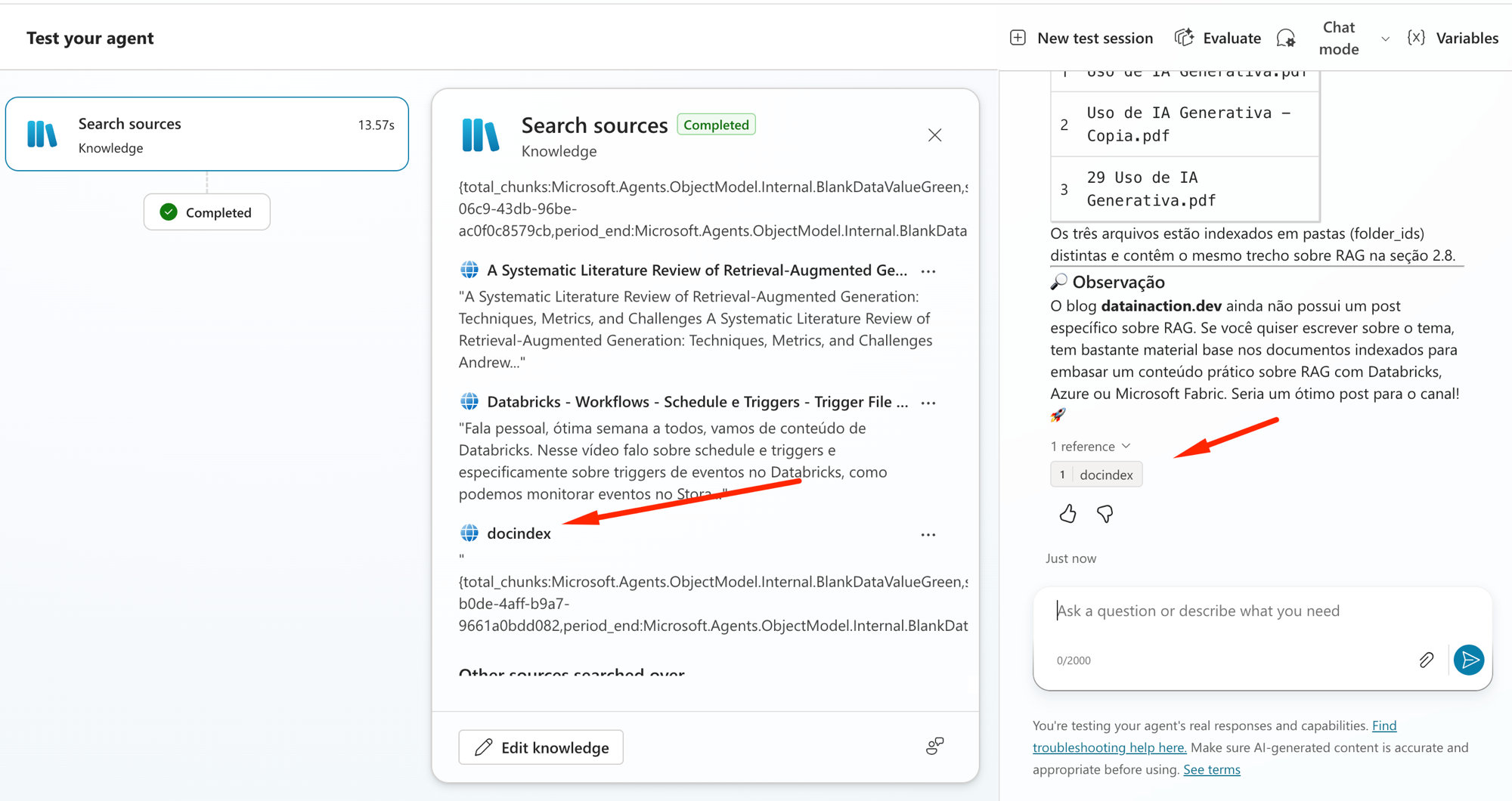
Repara na referência lá embaixo: docindex. Ele recuperou os trechos dos meus documentos sobre RAG (aquele "A Systematic Literature Review of Retrieval-Augmented Generation" e os PDFs de uso de IA generativa), montou a resposta explicando a seção 2.8 e citou o índice como fonte. É o RAG customizado do post 3 rodando de dentro do agente, com o meu chunking, os meus campos, do meu jeito.
Então já temos as duas fontes novas testadas: o Databricks entrega o número de negócio e o AI Search entrega o conhecimento dos documentos. O problema é fazer o agente escolher a fonte certa na hora certa, sem sair batendo em todas. E é aí que entra o pulo.
A descrição é o roteamento do agente
Esse é o ponto mais importante de se prestar atenção, quando o agente está em orquestração generativa, ele não tem um mapa fixo dizendo "pergunta de bônus vai no Databricks". O que ele lê pra decidir qual base chamar é a descrição de cada fonte. Se a descrição está vaga, genérica ou vazia, o modelo não sabe diferenciar uma da outra e faz o que a gente viu no teste do bônus: consulta todas por segurança.
Então a descrição não é campo de enfeite pra preencher com qualquer coisa. Ela é o que roteia. Uma descrição boa diz de forma bem específica o que tem ali dentro e quando aquela fonte deve ser usada, Exemplo:
Descrição ruim: "Dados do Databricks".
Descrição boa: "Dados transacionais e financeiros da operação: total de bônus gerados, transações, vouchers e saldo de clientes. Use esta fonte para perguntas com números, valores, totais e métricas de negócio."
Com a segunda, quando chega um "qual o total de bônus" o modelo bate o olho, vê "bônus" e "total" na descrição do Databricks e vai direto nele, sem passear pelo blog e pela internet.
Reginaldo, mas e se mesmo com descrição boa ele ainda insistir em consultar tudo?
Acontece, ainda mais quando as fontes têm assunto parecido. Aí o segundo reforço é no prompt do agente, nas Instructions. Você escreve o roteamento na unha, algo do tipo:
Regras de fonte:
- Perguntas com números, valores, totais ou métricas de negócio
  (bônus, transações, vouchers): use SOMENTE a fonte Azure Databricks.
- Perguntas sobre documentos, papers e material de estudo:
  use SOMENTE a fonte Azure AI Search (docindex).
- Perguntas sobre conteúdo do blog: use o site datainaction.dev.
- Só recorra à busca na web se nenhuma fonte interna responder.
Descrição fiel em cada base mais essas regras no prompt, e o agente para de sair consultando tudo. Ele fica mais rápido, mais barato em tokens e, principalmente, mais previsível, que é o que você quer quando isso vai pra produção.
RESUMO
Dá pra plugar o Azure Databricks direto como fonte de conhecimento: escolhe o catálogo (Dataset) no Unity Catalog e seleciona até 15 tabelas ou views. Aponte pra gold e views curadas, não pro bronze cru.
Depois de criar a fonte, autorize a conexão em Manage your connections até ficar Connected, senão ela não responde. O Copilot trata esse acesso como um Power Platform connector, por isso o Type na lista aparece assim.
O Azure AI Search pluga o índice que você montou no Foundry IQ (post 3), mas só entra índice com integrated vectorization. Sem isso ele cai em Unsupported.
Nos testes o Databricks entregou o número (R$ 147.764.468,26 da view de gold) e o AI Search entregou os documentos (docindex), cada um citando a sua fonte.
O agente fechou com 4 bases mais a web, mas sem descrição boa ele consulta todas as fontes de uma vez, como aconteceu na pergunta do bônus.
A descrição de cada base é o roteamento. Escreva o que tem ali e quando usar, e reforce as regras de fonte no prompt do agente pra ele acertar a fonte e não passear por todas.
E com isso fecha a série de Base de Conhecimento. Passamos pelo Knowledge e todas as fontes (post 1), o SharePoint e o fluxo de busca (post 2), o semantic index e o Foundry IQ (post 3), site público vs web search (post 4) e hoje o Databricks e o AI Search como fonte. Espero que tenha ajudado a clarear onde cada fonte brilha. Semana que vem a gente sobe um andar e começa a falar de Tools, que é quando o agente deixa de só saber e passa a fazer.
Referências:
https://learn.microsoft.com/en-us/microsoft-copilot-studio/knowledge-add-databricks
https://learn.microsoft.com/en-us/microsoft-copilot-studio/knowledge-azure-ai-search
https://learn.microsoft.com/en-us/microsoft-copilot-studio/knowledge-copilot-studio
Fique bem e até a próxima.
#copilotstudio #databricks #azureaisearch #foundryiq #ia #agentes #datainaction
Hey dataholics! We've reached the fifth and last post of the Knowledge base series, and I saved the source that's the face of our blog for the finale. In post 4 I promised to plug Databricks in directly as the agent's source, and that's what we do today. Along with it I connected an Azure AI Search index I built with my own chunking pattern (the Foundry IQ we opened up in post 3), closing the agent off with 4 sources plus the web. And I'm using this post to walk you through a detail that makes all the difference once you put several sources in a single agent: each source's description is what teaches the agent to pick the right one at the right time.
What we'll cover in this post:
The final agent: 4 knowledge sources plus the web
Databricks as a source (and the connection step that trips everyone up)
Azure AI Search: plugging in my Foundry IQ index
In practice: Databricks answering, only querying everything
In practice: AI Search on document searches
The description is the routing (the most important part)
Summary
The final agent: 4 sources plus the web
Before I start adding things, let me show you where we want to get to. After plugging everything in, my agent's Knowledge tab ended up with four very different sources living in the same place:
Notice the Type column, because each row is a world we visited in the series: the Public website (datainaction.dev/blog) from post 4, the SharePoint (2. Calendário 2026) from posts 1 and 2, the Azure AI Search (the Foundry IQ index from post 3) and a Power Platform connector that's actually Databricks, I'll explain that nickname in a bit. All with a Ready status, side by side.
And there's still the web turned on over all of that. On the Overview screen you can see the sources and, right below them, Web Search enabled (that default we found out in post 4 that comes on by itself):
So the agent's scoreboard is this: 4 knowledge sources plus 1 Web Search. Next week I start talking about Tools, which is the next floor of this house, but for today the focus is knowledge. Let's build each piece.
Databricks as a knowledge source
This is the part I most wanted to show. You go to Add knowledge and pick Azure Databricks. The first thing it asks for is the Dataset, which here is your catalog in Unity Catalog:
How nice is that, it already lists the catalogs that exist in my workspace (sandbox_gov, system, main, prod, samples, demo). I picked prod and it went to fetch the tables inside it. On the next screen you select what will become a source, and you can grab up to 15 items:
Here my layered modeling shows up plain as day: prod.bronze.stores_raw, prod.silver.transactions, prod.gold.vw_customer_bonus_balance and so on. I picked the gold view vw_customer_bonus_balance, which is the already-processed data ready for a business question. One tip worth gold: point at gold, at curated views and tables, not at raw bronze. The agent is going to query this in natural language and you want it landing on clean data, with column names that make sense.
Created the source and thought you were done? Almost. There's a step that trips a lot of people up: after adding Databricks you need to authorize the connection for it to work from inside the agent. Go to Manage your connections and check the status:
As long as this Azure Databricks connection isn't Connected, the source just sits there looking pretty but answers nothing. Notice the "Used By 1 tool" too: under the hood Copilot treats this access to Databricks as a Power Platform connector, and that's why over in the Knowledge list it showed up with the Type Power Platform connector instead of its own "Databricks" type. Same animal, just wearing a different name tag.
Azure AI Search: my Foundry IQ index
The second new source is Azure AI Search. Remember that in post 3 I built an index in Foundry IQ with chunking my own way? That's the one I'm going to plug in now. In Add knowledge, the Advanced tab, I picked Azure AI Search and it listed the indexes that exist in my service:
I selected docindex, which is my document index. But pay attention to that warning in the footer, because it catches a lot of people off guard: an Unsupported indexes block shows up saying that some of my indexes aren't supported because they don't use integrated vectorization. In other words, not just any Azure AI Search index gets in here, it needs to have integrated vectorization configured. An old index, keyword search only, Copilot Studio won't even let you select. If yours doesn't show up in the list, it's almost always this.
In practice: Databricks answering
Agent built, time to test. I went to the test panel and asked something only Databricks could answer: "What's the total bonus generated?". The answer came back spot on, straight from the gold view:
How cool is that, it went to vw_customer_bonus_balance, brought back { "Result": 147764468.26 } and formatted it for me as R$ 147,764,468.26, and even offered to break it down by period or category. From the answer's point of view, perfect.
Now open the Search sources panel on the left and notice what it queried to reach that number: my blog, Azure AI Search, Databricks and even a "bonus calculator" it found on the internet. For a question only Databricks could answer, it knocked on every door in the house, including the one to the street. That's the default behavior when the descriptions don't guide the choice: in doubt, the agent asks everyone. It works, but it spends time and tokens on a source that didn't have the answer, and in a real scenario it ends up bringing in context it shouldn't. Keep this image, because it's exactly the one I want to use to explain the next block.
In practice: AI Search on searches
To see the AI Search index at work I flipped the switch and asked about a document topic, something that lives in the PDFs I indexed in docindex. And this time it went to the right source:
Notice the reference down at the bottom: docindex. It retrieved the passages from my documents about RAG (that "A Systematic Literature Review of Retrieval-Augmented Generation" and the generative AI usage PDFs), put the answer together explaining section 2.8 and cited the index as the source. It's the custom RAG from post 3 running from inside the agent, with my chunking, my fields, my way.
So we've got both new sources proven: Databricks delivers the business number and AI Search delivers the document knowledge. The problem is getting the agent to pick the right source at the right time, without knocking on all of them. And that's where the trick comes in.
The description is the agent's routing
This is the point I most want you to take from the whole series. When the agent is on generative orchestration, it doesn't have a fixed map saying "a bonus question goes to Databricks". What it reads to decide which source to call is the description of each source. If the description is vague, generic or empty, the model can't tell one from another and does what we saw in the bonus test: it queries them all to be safe.
So the description isn't a decorative field to fill with just anything. It's what routes. A good description says very specifically what's inside it and when that source should be used. Compare:
Bad description: "Databricks data".
Good description: "Transactional and financial data from the operation: total bonus generated, transactions, vouchers and customer balances. Use this source for questions with numbers, values, totals and business metrics."
With the second one, when a "what's the total bonus" comes in the model takes one look, sees "bonus" and "total" in the Databricks description and goes straight to it, without wandering through the blog and the internet.
Reginaldo, but what if even with a good description it still insists on querying everything?
It happens, especially when the sources cover similar topics. Then the second reinforcement is in the agent's prompt, in the Instructions. You write the routing by hand, something like:
Source rules:
- Questions with numbers, values, totals or business metrics
  (bonus, transactions, vouchers): use ONLY the Azure Databricks source.
- Questions about documents, papers and study material:
  use ONLY the Azure AI Search source (docindex).
- Questions about blog content: use the datainaction.dev site.
- Only fall back to web search if no internal source answers.
Faithful description on each source plus these rules in the prompt, and the agent stops muscling its way through everything. It gets faster, cheaper on tokens and, most of all, more predictable, which is what you want when this goes to production.
RECAP
You can plug Azure Databricks in directly as a knowledge source: pick the catalog (Dataset) in Unity Catalog and select up to 15 tables or views. Point at gold and curated views, not at raw bronze.
After creating the source, authorize the connection in Manage your connections until it reads Connected, otherwise it won't answer. Copilot treats this access as a Power Platform connector, which is why the Type in the list shows up that way.
Azure AI Search plugs in the index you built in Foundry IQ (post 3), but only an index with integrated vectorization gets in. Without it, it lands in Unsupported.
In the tests Databricks delivered the number (R$ 147,764,468.26 from the gold view) and AI Search delivered the documents (docindex), each citing its own source.
The agent ended up with 4 sources plus the web, but without a good description it queries every source at once, like it did on the bonus question.
The description of each source is the routing. Write what's inside it and when to use it, and reinforce the source rules in the agent's prompt so it hits the right source instead of wandering through all of them.
And that wraps the Knowledge base series. We went through the Knowledge and all its sources (post 1), SharePoint and the search flow (post 2), the semantic index and Foundry IQ (post 3), public website vs web search (post 4) and today Databricks and AI Search as a source. I hope it helped clear up where each source shines. Next week we go up a floor and start talking about Tools, which is when the agent stops just knowing and starts doing.
References:
https://learn.microsoft.com/en-us/microsoft-copilot-studio/knowledge-add-databricks
https://learn.microsoft.com/en-us/microsoft-copilot-studio/knowledge-azure-ai-search
https://learn.microsoft.com/en-us/microsoft-copilot-studio/knowledge-copilot-studio
Stay well and see you next time.
#copilotstudio #databricks #azureaisearch #foundryiq #ai #agents #datainaction
Gostou? Tem mais no YouTube e no LinkedIn.
Enjoyed it? There's more on YouTube and LinkedIn.
Continue lendo Keep reading
![GitHub Copilot a fundo [5] - AI Credits: o Copilot virou usage-based](/images/ghcopilot-aicredits-capa.png)
GitHub Copilot a fundo [5] - AI Credits: o Copilot virou usage-based
Ler → Read →![GitHub Copilot a fundo [4] - Copilot CLI: o agente que mora no seu terminal](/images/ghcopilot-cli-capa.png)
GitHub Copilot a fundo [4] - Copilot CLI: o agente que mora no seu terminal
Ler → Read →![GitHub Copilot a fundo [3] - MCP: ferramentas para o agente sem perder a governança](/images/ghcopilot-mcp-capa.png)